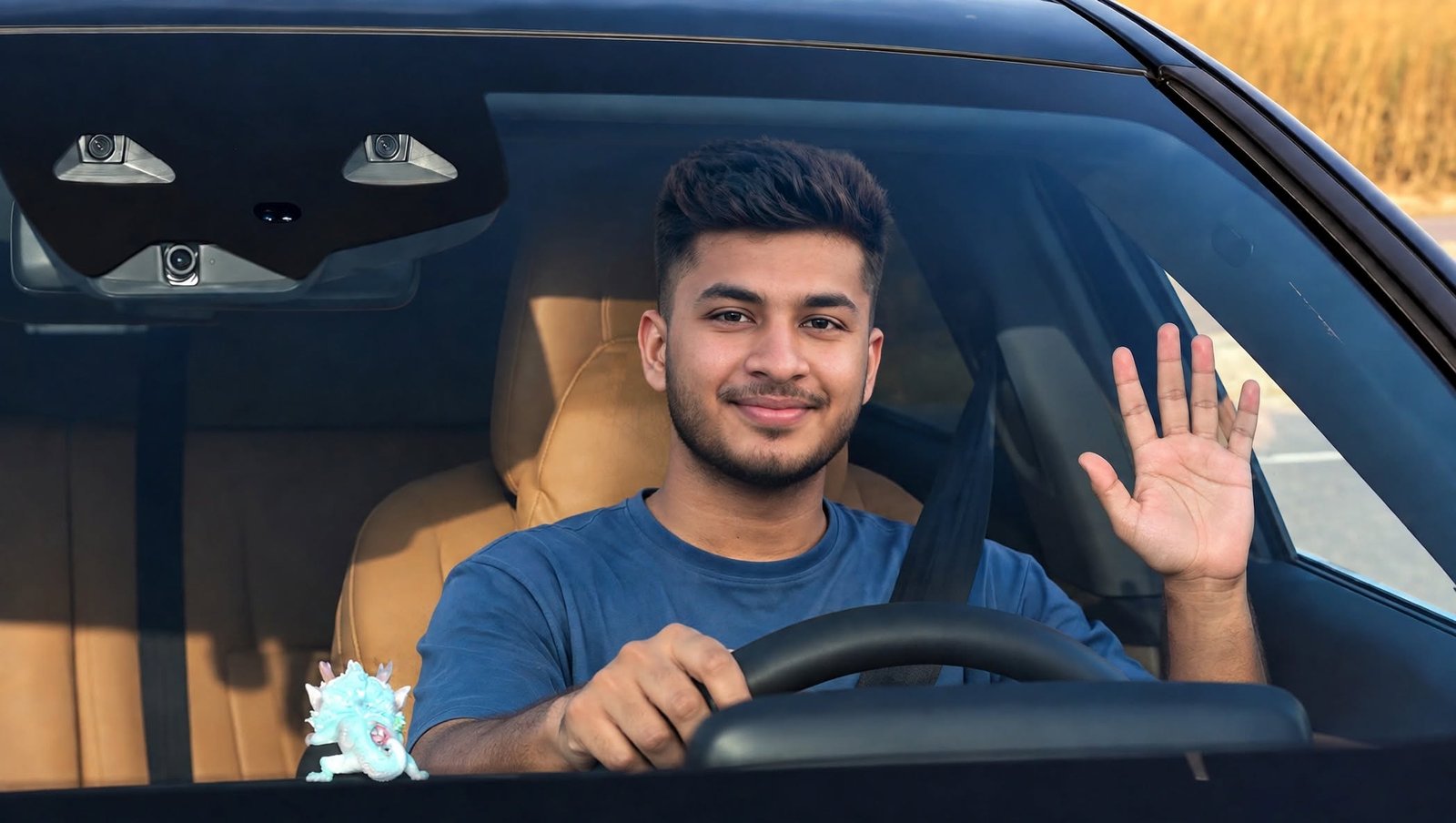
Artificial Intelligence has made video creation much easier than before. Today, you can use AI tools such as Google Gemini to turn a simple photo into a creative video that can make it look like you are driving a car.
You do not necessarily need a camera, a real car, a location, or a professional video setup. With a good-quality photo and the right instructions, AI can generate a realistic-looking car driving scene.
This type of AI video can be useful for YouTube Shorts, Instagram Reels, Facebook Reels, and other social media content.
In this guide, you will learn how to create a realistic car driving video with your own photo, which type of photo works better, what instructions you can give to AI, and how to make the final video look more natural.
How to Create a Car Driving Video With Google Gemini AI
To get started, you can use Google Gemini through its mobile app or available web version.
The quality of your original image is important because AI uses the photo to understand your face, clothing, body position, and other visual details.
Step 1: Choose a Good Photo
First, select a clear photo of yourself from your phone gallery.
For better results, keep these points in mind:
- Use a high-quality image.
- Make sure your face is clearly visible.
- Avoid blurry photos.
- Do not use an image where something is covering your face.
- Avoid extremely dark photos.
- Keep your body position natural.
- Make sure important facial features are not hidden.
A portrait or full-body image can be useful depending on the type of driving scene you want to create.
Step 2: Upload Your Photo to Google Gemini
Open Google Gemini and upload the photo you selected.
After uploading the image, describe exactly what kind of video you want.
For example, you can ask AI to show the person sitting in the driver’s seat of a modern car, with a steering wheel in front and the car moving on a realistic road.
Try to describe the environment, camera angle, lighting, driving movement, car interior, and overall appearance of the scene.
The more clearly you describe the desired scene, the easier it can be for the AI to understand your idea.
Step 3: Give Clear Instructions for a Realistic Result
Simply writing “create a car driving video” may not always produce the result you expect.
A better prompt can include several important elements:
Person → Car → Driving → Road → Camera → Lighting → Movement → Realistic Environment
For example, you can describe a person sitting naturally in the driver’s seat of a modern car, holding the steering wheel correctly while driving on a realistic city road.
You can also specify the type of environment you want, such as:
- City road during the daytime
- Highway driving
- Evening driving
- Modern urban environment
- Open road
Providing these details can help create a more complete and realistic-looking scene.
What Type of Car Can You Use?
One advantage of AI video creation is that you can describe the type of car you want in your scene.
For example:
- Modern luxury car
- Premium sedan
- Sports car
- SUV
- Electric car
- Futuristic car
You can also combine the car type with a particular location.
For example, you could create a premium sedan driving through a city or an SUV traveling on a highway.
The more specific your description is, the better AI can understand the visual direction of the scene.
Tips to Make the Video Look More Realistic
Creating a car and adding your photo is not always enough to produce a convincing result. Small visual details can make a significant difference.
1. Keep the Face Consistent
AI-generated videos can sometimes slightly change a person’s facial appearance.
To reduce this problem, clearly instruct the AI to maintain the person’s facial identity and important facial features as closely as possible to the original photo.
This can help maintain better character consistency throughout the video.
2. Pay Attention to the Hands and Steering Wheel
Hands and the steering wheel are important parts of a driving scene.
If the hands appear in an unnatural position or the fingers look distorted, the video can immediately appear artificial.
You can instruct the AI to keep both hands in a natural position on the steering wheel and maintain realistic hand and finger proportions.
3. Use Natural Camera Movement
Real driving footage usually has some natural camera movement instead of remaining completely static.
You can experiment with different camera perspectives, such as:
- Dashboard camera
- Front passenger view
- Cinematic side angle
- Interior driving shot
Choose the camera angle according to the type of scene you want to create.
4. Use Natural Lighting
Lighting also plays an important role in making an AI-generated scene look realistic.
Instead of using excessive artificial lighting, you can describe natural lighting conditions such as:
- Morning light
- Afternoon daylight
- Natural daylight
- Evening light
The lighting on the person’s face should also match the lighting inside the car. A mismatch between the face and environment can make the video look artificial.
Where Can You Use Your AI Car Driving Video?
A car driving video created from your own photo can be used for different types of creative content.
YouTube Shorts
You can use the video for short-form content, tutorials, AI experiments, or creative demonstrations.
Facebook Reels
AI-generated driving scenes can also be used in Facebook Reels. You can even create before-and-after content showing how a normal photo is transformed into a video.
Instagram Reels
Instagram Reels can be another useful platform for sharing AI-generated creative videos made from your photos.
Personal Projects
You can also use these videos for personal projects, creative presentations, profile content, or other video experiments.
Common Problems With AI-Generated Driving Videos
AI video technology is improving quickly, but the result may not always be perfect.
You may sometimes notice problems such as:
- Slight changes in facial appearance
- Unnatural hands or fingers
- Distorted steering wheels
- Incorrect car interiors
- Distorted background objects
- Unrealistic vehicle movement
- A mismatch between the face and lighting
If the first result does not look right, you can try generating the video again using the same image with improved instructions.
Sometimes, changing the description of a specific problem can produce a better result.
Which Photo Is Best for Creating an AI Video?
Your original image plays an important role in the final result.
For better results, try to use a photo that:
- Has good lighting.
- Shows your face clearly.
- Has a good resolution.
- Does not have heavy shadows across the face.
- Shows the body clearly if you want a full-body scene.
A clear portrait image can make it easier for AI to understand facial details.
If you want to create a scene that includes your complete body, choose an image where your body position is clearly visible.
Is a Google Gemini AI Video a Real Video?
No. An AI-generated driving video is not actual camera footage of you driving a car.
AI creates a new visual scene based on the image and instructions you provide. The final result may look realistic, but it is still computer-generated or AI-assisted content.
If you share such a video on social media and viewers could reasonably mistake it for a real event, it is better to make the AI-generated nature of the content clear when appropriate.
<div class=”copy-box”>
<div class=”copy-header”>
<strong>AI Video Prompt</strong>
<button onclick=”copyPrompt(this)”>Copy</button>
</div>
<pre class=”prompt-text”>Create a realistic car driving video using the uploaded photo. Keep the person’s face, facial features, hairstyle and clothing consistent with the original image. Show the person sitting naturally in the driver’s seat of a modern luxury car, holding the steering wheel with both hands. The car is moving on a realistic city road during daylight. Use natural lighting, realistic camera movement, detailed car interior and cinematic visuals. Keep the overall scene photorealistic and natural.</pre>
</div>
<style>
.copy-box {
border: 1px solid #ddd;
border-radius: 10px;
overflow: hidden;
margin: 20px 0;
background: #f8f9fa;
}
.copy-header {
display: flex;
justify-content: space-between;
align-items: center;
padding: 12px 15px;
background: #f1f3f5;
}
.copy-header button {
border: none;
background: #0b6bff;
color: #fff;
padding: 8px 16px;
border-radius: 6px;
cursor: pointer;
font-weight: 600;
}
.copy-header button:hover {
opacity: 0.9;
}
.prompt-text {
margin: 0;
padding: 18px;
white-space: pre-wrap;
word-break: break-word;
font-family: Arial, sans-serif;
font-size: 15px;
line-height: 1.6;
background: #fff;
}
.copy-header button.copied {
background: #198754;
}
</style>
<script>
function copyPrompt(button) {
const box = button.closest(‘.copy-box’);
const text = box.querySelector(‘.prompt-text’).innerText;
navigator.clipboard.writeText(text).then(function() {
button.innerText = ‘Copied!’;
button.classList.add(‘copied’);
setTimeout(function() {
button.innerText = ‘Copy’;
button.classList.remove(‘copied’);
}, 2000);
});
}
</script>
Why Is AI Video Creation Becoming So Popular?
In the past, creating a professional car driving video could require a camera, a car, a suitable location, lighting equipment, and video editing.
AI tools have made it easier to experiment with creative video concepts using a single image.
For people who regularly create content for YouTube, Facebook, or Instagram, AI can be an additional tool for creating new visual ideas without setting up a complete video shoot.
Conclusion
Creating a realistic-looking car driving video from your own photo using Google Gemini AI can be an interesting way to experiment with AI-powered content creation.
For better results, start with a high-quality photo and provide clear instructions about the person’s appearance, car interior, steering wheel, hand position, lighting, camera angle, road, and movement.
Do not worry if the first generation is not perfect. AI-generated videos can sometimes contain visual mistakes, so adjusting the prompt and trying again may improve the result.
If you are looking for new ideas for YouTube Shorts, Facebook Reels, or Instagram Reels, creating a car driving scene from your own photo can be a creative AI video experiment.